Five plans from $1,393 a year, one portal, one TLS port, and two moves that do not end your contract. A buyer's guide to Virtuoso SaaS Single Server.
Buying a managed Virtuoso through AWS Marketplace means two doors, and they do not open onto the same room. Marketplace holds your contract, your renewal setting and your invoice. The Virtuoso Buyer Portal holds your server, its endpoints and its password.
Walk through them in order and the whole thing is a short corridor. Choose a term and exactly one plan on the product page, subscribe, select Set up your account, wait until the instance reads running and healthy, then connect. The portal hands you an HTTPS Conductor, an HTTPS SPARQL editor and a TLS SQL port, 1112, which stays shut until you name the addresses allowed in.
The two warnings that matter most in the guide are both wrong-door warnings. Switching off auto-renewal in Marketplace stops the next renewal; it does not end the term. Deleting the instance in the portal ends the tenant; it does not end the agreement. Below: which door to use for what, what each plan costs on the listing of October 20, 2026, and what to check before you call setup done.
A second guide, on backup and restore, adds a third actor. You run the online backup from the portal and record where it landed. Only OpenLink seller administrators run a restore, after your explicit authorization, because a restore replaces the live database and needs an outage.
View this analysis as a KG entity“The live Marketplace offer is authoritative.” — OpenLink Support
The Marketplace listing is written for three kinds of buyer. Find yourself below; the rest of this guide is the same corridor for all three.
You are an existing customer who wants a managed-server edition of Virtuoso, combined with the experienced services capabilities OpenLink provides.
You evaluated the commercial edition through the free evaluation offers and are ready to begin a proof of concept, or are at the point of rollout.
You built a modern agentic solution, or revamped a struggling application or service, and it now needs rollout to your customer base with the resilience a cloud platform offers.
Everything in this guide follows from one fact. AWS Marketplace and the Virtuoso Buyer Portal are two separate places that hold two separate things. Marketplace holds the agreement, its renewal setting and its invoice. The portal holds the running server and the keys to it. An action in one place does not reach into the other.
| Dimension | AWS MarketplaceContract and billing | Virtuoso Buyer PortalServer and credentials |
|---|---|---|
| What it holdsdivergentThe thing each surface is the keeper of. | The agreementThe term, plan, price, tax, renewal setting and EULA acceptance. The agreement exists whether or not a tenant is running. | The serverThe tenant instance with its status and health, endpoints, dba password, TLS SQL allow-list and backup location. |
| How you arriveconvergentWhere the two surfaces meet: the one-way hand-off. | Product page, then Set up your accountStart on the AWS Marketplace product page. Never bookmark a fulfillment URL; Marketplace supplies a one-time setup context after purchase. | Sign in or create an accountSet up your account opens the portal identity flow and binds the buyer context. Use the portal account already bound to this AWS account. |
| Whose accountconvergentHow identity is paired across the two surfaces. | The buyer AWS accountThe account that owns and pays for the agreement. | One portal account per AWS accountReuse it for future portal access and for additional Marketplace setup links tied to the same buyer account. |
| BillingdivergentWhich figures count as the bill. | Billing authorityIssues the invoice. Shows the agreement and its auto-renewal setting under Manage subscriptions. | Operational estimatesUsage & Billing shows plan, billing cycle, instance hours, estimated contract amount and estimated storage or data-transfer overage. |
| RenewaldivergentWhere the renewal choice is made and where it is only displayed. | Decided hereChoose auto-renewal at subscription and review it later under Manage subscriptions. Turning it off applies to the next renewal only. | Displayed, not decidedSettings lists the active agreement ID and offer ID and the agreements tied to the buyer account; the guide sends you to Marketplace for the renewal setting. |
| Ending thingsdivergentWhat closes the server and what closes the contract. | Cancel, refund, terminate earlyFollow the agreement terms, through OpenLink support or AWS Marketplace Support, and AWS's guidance on cancelling and refunds. | Stop or delete the tenantStop Instance keeps the data. Delete Instance terminates the tenant infrastructure and is not a substitute for cancelling or changing the agreement. |
These figures come from the public AWS Marketplace listing as read on October 20, 2026, not from the guide, whose screenshots carry illustrative prices. The guide says the live offer is authoritative, so treat this page as a map and the listing as the price. Contract price covers the plan; storage and data transfer beyond the entitlement are metered on top, and the listing notes that AWS infrastructure costs may apply.
Developer, Starter, Professional, Business and Enterprise. The contract takes exactly one plan dimension.
The 24-month contract saves up to 6% and the 36-month contract up to 11%, per the listing.
Metered, in addition to the contract price, when usage exceeds the included entitlement.
Opened only to the public IPv4 CIDR ranges you enter; 0.0.0.0/0 is not permitted.
The guide is a corridor with seven rooms. Each stage ends with something you can check, and the stage that most buyers want to hurry, waiting for the instance, is the one where the guide asks you to do nothing but refresh.
Sign in to the AWS account that will own and pay for the agreement. Read the live offer: term, plan, taxes, metered overages, EULA, support and renewal terms. Use an email address that will outlast the project, and keep the Marketplace tab open until the confirmation page offers Set up your account.
On the Virtuoso SaaS Single Server page choose View purchase options. Pick a duration (the public offer shows 12, 24 and 36 months) and exactly one plan, read the metered charges, accept the Marketplace terms and EULA, choose whether the agreement renews automatically, then select Subscribe.
Before subscribing, confirm the tier, duration, contract price, tax and renewal choice. A Marketplace agreement is a commercial contract. Once AWS creates it, select Set up your account on the confirmation page; do not bookmark a fulfillment URL, because Marketplace supplies a one-time setup context.
Set up your account opens the Virtuoso SaaS identity flow and binds the buyer context to the portal account. Sign in if you already have a portal account for this buyer AWS account; otherwise create one. Keep to one portal account per buyer AWS account and reuse it for later setup links.
The portal creates one tenant instance for the active subscription. Open Instances and wait for status running and health healthy, which can take several minutes. Refresh the page instead of repeating Marketplace setup, and use the endpoint links only after health reads healthy.
The instance detail page lists the HTTPS Conductor, the HTTPS SPARQL editor and the Secure SQL/ODBC/JDBC (TLS) host with port 1112, plus the dba password. TLS SQL stays closed until you enter trusted CIDR ranges. The command isql host:1112 -E dba followed by status(); confirms the server answered.
Stop, Start and Delete live on the instance page. Container shell access uses a buyer IAM role. Backups run from a generated script that you run yourself, and a restore is requested from OpenLink. Usage & Billing shows estimates, Settings shows the agreement, and Manage subscriptions in AWS Marketplace holds the renewal setting.
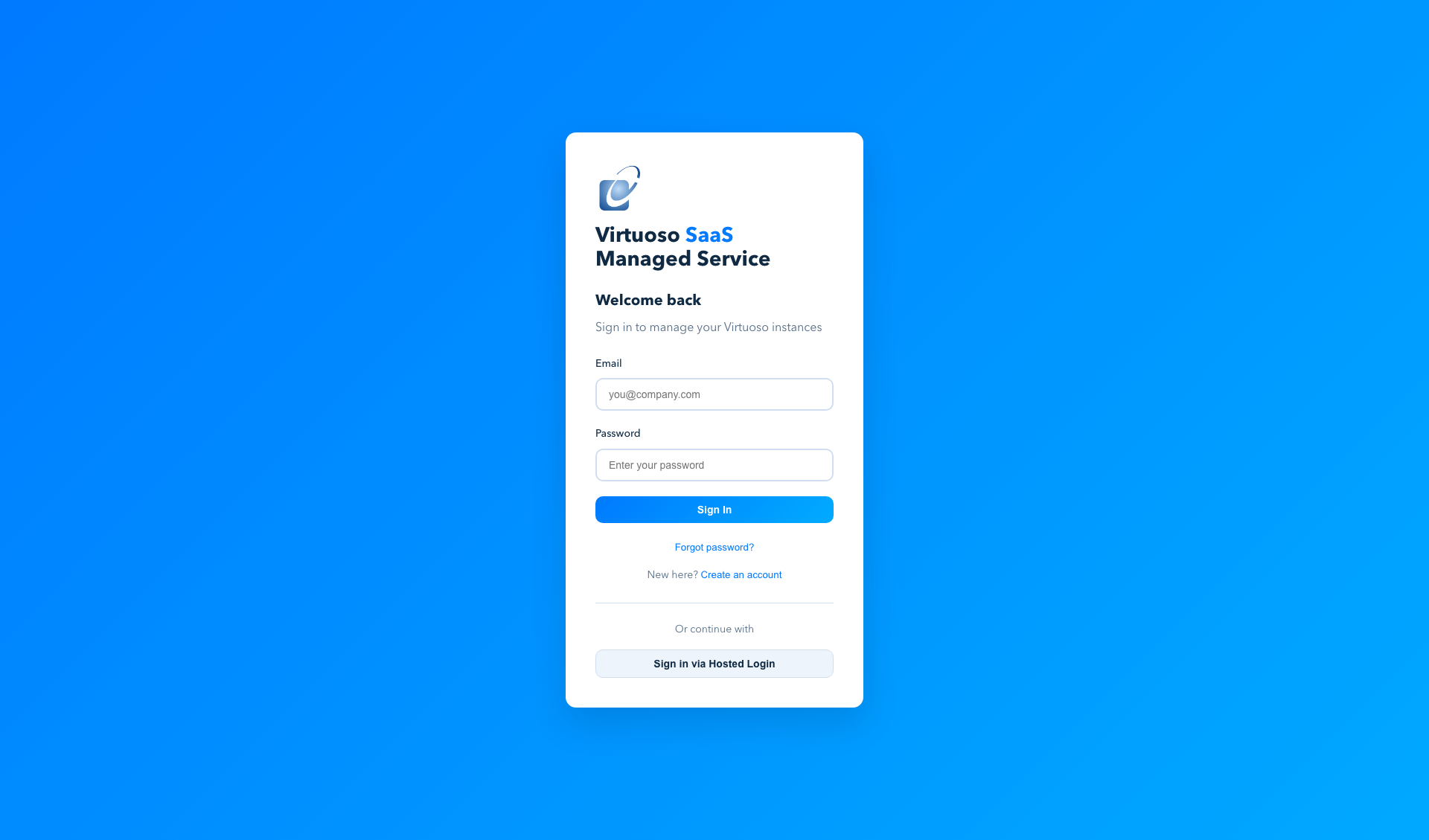
Seventeen screenshots from the guide and one live capture of the portal sign-in page, grouped under the stage each one illustrates. The images from the guide load from the OpenLink Community forum; prices in them are illustrative, as the guide says. The sign-in image under Stage 4 was captured on October 20, 2026 from the live portal, because the forum copy still showed the earlier edition. Select an image to open it full size.


The backup and restore guide adds a third actor to the story. You can run an online backup from the portal while Virtuoso stays up, and you can prove it worked. You cannot run a restore. A restore replaces the live database, needs an outage and is performed only by OpenLink seller administrators after you authorize it in writing.
From Instances, open the running instance and its Backup & Recovery section, then copy or download the Run online backup script. Run it where the buyer IAM user or role is configured, with AWS CLI v2 and the Session Manager plugin installed. Never use a script from another buyer, instance or environment.
A successful run finishes without error and reports the durable S3 backup prefix. Record the instance ID and project name, the completion date and UTC time, the prefix or backup-set timestamp and the output showing the S3 sync succeeded. The bucket is managed by OpenLink; do not alter, delete or replace objects in it.
The first successful run establishes a full backup chain. The service then runs its per-instance daily backup workflow, which creates incremental backups and copies them to the same durable S3 location. The script reports success only when the sync task exits with code 0.
OpenLink verifies the buyer, instance ownership and backup set, creates a rollback copy of the current database files, stops the tenant, restores the selected backup set, restarts Virtuoso and checks health. It then confirms the result with you and keeps the most recent rollback copy for the configured retention period.
A restore is requested through a support request, never by deleting or recreating the instance. Send all six items at once, so that OpenLink can verify who you are and what you want before it stops your tenant.
OpenLink uses these to verify the buyer and the ownership of the instance.
Record both when you run the backup, so the request matches your receipt.
To choose a different recovery point, name it here. Do not run an older script or edit the generated restore guidance.
A restore replaces the active Virtuoso database with the selected backup set and can discard changes made after that backup.
A restore is not an online operation; the tenant is stopped while it runs.
OpenLink confirms the result with you; you then validate the restored service.
Each of these is a place where one action is mistaken for another. Three come straight from the buyer guide, two from the backup and restore guide, and the refund line comes from the public listing and is worth reading before you press Subscribe.
Turning off auto-renewal prevents the next renewal. It does not end the active term and does not by itself remove a tenant. The setting sits in AWS Marketplace, under Manage subscriptions.
Delete Instance terminates the tenant infrastructure. The guide says it is not a substitute for cancelling or changing a Marketplace agreement. Cancellation, refund and early termination follow the agreement terms, through OpenLink support or AWS Marketplace Support.
Usage & Billing shows the plan, billing cycle, current-month instance hours, estimated contract amount and any estimated storage or data-transfer overage. These are operational estimates. AWS Marketplace remains the billing authority and issues the invoice.
The public listing, read on 2026-10-20, states that the vendor does not currently support refunds, while noting that you can cancel at any time or contact OpenLink. The guide points to the agreement terms and to AWS's pages on cancelling a subscription and requesting a refund.
Do not delete the instance to ask for a restore. The backup and restore guide calls deletion a termination action, separate from backup recovery. A restore is requested through a support request.
A restore replaces the active Virtuoso database with the selected backup set, can discard changes made after that backup, and needs a service outage. If the restored state must be protected at once, run a new online backup after you have validated it.
Both guides close with troubleshooting. The buyer guide gives four cases about arriving through the wrong door or with the wrong key, and the TLS port that stays shut until you tell it who may knock. The backup and restore guide adds four more about the Backup & Recovery section, the running task, AWS access and the recovery point.
Confirm the Marketplace agreement is active in the same buyer AWS account used for setup. Open Set up your account from that agreement, not from an old bookmarked registration URL. Sign in with the portal account already associated with that AWS account, then refresh Instances and wait for provisioning.
Sign out of the buyer portal, reopen Set up your account from the active Marketplace agreement, and sign in with the portal account previously bound to that buyer AWS account.
Do not reuse it. Open the active agreement in AWS Marketplace and choose Set up your account again.
Confirm that the source public IP address is in Allowed IPv4 CIDRs and that the client uses TLS on port 1112. A self-signed certificate warning is expected unless the client has been set to trust the tenant certificate.
The instance may still be provisioning, stopped, or missing required backup metadata. Confirm that it is running and healthy; if the section still does not appear, contact OpenLink support with the instance ID.
Start the instance from its detail page, wait until its health is healthy, then rerun a newly copied script from the buyer portal.
Use a buyer IAM user or role, not AWS root credentials. Confirm the one-time buyer shell-access policy is attached, and use the latest script from the instance detail page.
Do not run an older script or edit the generated restore guidance. Request a seller-admin restore and name the desired backup date and time in the support request.
The buyer guide ends with a seven-line onboarding checklist. Treat it as the exit test: if any line is not true, you are still inside the corridor. The eighth line comes from the backup and restore guide.
The agreement must sit in the AWS account that will own and pay for it.
One portal account per buyer AWS account.
Read on the Instances page; refresh rather than repeat setup.
Open both links from the instance detail page once health is healthy.
Test both sides of the allow-list; isql on port 1112 with status();.
Not in tickets, screenshots, source control or shell history.
Under Manage subscriptions; auto-renewal off applies to the next renewal only.
From the backup and restore guide: run the portal's script, wait for the S3 sync to succeed, and keep the instance ID, UTC time and backup prefix.
The buyer guide sends the reader to two runbooks, one for container shell access and one for online backup and recovery. They sit in a forum topic that returned HTTP 403 on October 20, 2026, so nothing from them is modelled here. The separate Backup and Restore Guide, which is readable, is modelled in full above.
Linked from the guide for ECS Exec shell access, which uses a buyer IAM user or role, never the AWS account root user. Not read: the forum topic returned HTTP 403 on 2026-10-20. The separate Backup and Restore Guide (community topic 6602) states that the one-time shell-access policy it needs is the one this runbook describes.
Linked from the guide for backup and restore. The guide says restore is intentionally controlled because Virtuoso must be stopped before replacement database files are applied. Runbook not read: HTTP 403 on 2026-10-20. A separate Backup and Restore Guide (community topic 6602) is read and modelled in this collection.
Fourteen steps from the AWS Marketplace product page to a confirmed TLS SQL connection and a reviewed renewal setting, in the order the guide gives them.
Use the AWS account that will own and pay for the agreement, and an email address that will stay available to administer the portal account.
Start from the Virtuoso SaaS Single Server page on AWS Marketplace. Do not open a bookmarked fulfillment URL.
The public offer presents 12-, 24- and 36-month terms.
Choose one plan dimension for the required service tier.
These apply in addition to the contract price when usage exceeds the included entitlement.
Read the terms before accepting; the live offer, not a screenshot, is authoritative.
Confirm tier, duration, contract price, tax and renewal choice. Turning off auto-renewal prevents the next renewal only.
On the purchase confirmation page, select Set up your account so Marketplace can hand its one-time context to the portal.
Sign in if a portal account already exists for this buyer AWS account; otherwise choose Create an account. Return to the buyer portal afterwards.
Open Instances and refresh the page; do not repeat Marketplace setup while provisioning.
Open the instance detail page for the HTTPS Conductor, HTTPS SPARQL and Secure SQL/ODBC/JDBC (TLS) values and the dba password, which must stay out of tickets, screenshots, source control and shell history.
Enter only trusted public IPv4 CIDR ranges, /32 for one address, then select Update Secure SQL Access. 0.0.0.0/0 is not permitted.
Run isql <tenant-hostname>:1112 -E dba, enter the password when prompted, then call status(); to confirm the server answered.
Check Usage & Billing and Settings in the portal, and review the agreement and its auto-renewal setting under Manage subscriptions in AWS Marketplace.
Eleven steps from the backup and restore guide: run and verify an online backup, request a restore from OpenLink, and validate afterwards.
You need access to the buyer portal, a running instance, buyer AWS IAM credentials with the one-time shell-access policy, and AWS CLI v2 with the Session Manager plugin on the workstation that will run the script.
Sign in to the portal, open Instances, select the running instance and open Backup & Recovery.
The script is specific to this buyer, instance and environment; never reuse one from elsewhere.
Use a terminal configured with the buyer IAM user or role, not AWS root credentials, and do not close it while the backup-sync task runs.
The script reports success only when the Fargate sync task exits with code 0. The first success establishes the full backup chain.
Keep the instance ID and project name, the completion date and UTC time, the backup prefix or backup-set timestamp, and the output confirming the S3 sync.
Include the buyer AWS account ID and portal email, the instance ID and project name, the backup date and time or prefix, and a technical contact.
State explicit authorization to replace the current database state and confirm the expected service outage is acceptable.
OpenLink verifies the buyer, instance and backup set, makes a rollback copy, stops the tenant, restores the set, restarts Virtuoso and confirms health.
Check that status is running and health is healthy, open HTTPS Conductor and verify the content, and run an application-level or SQL validation.
Do this after validation, so the restored state is captured at once.
A managed Virtuoso service sold by OpenLink Software through AWS Marketplace. After subscribing, you use the Virtuoso Buyer Portal to provision and manage one dedicated single-server Virtuoso instance with HTTPS and TLS SQL access, backups and lifecycle controls.
The public listing, read on 2026-10-20, says the vendor does not currently support refunds, but that you can cancel at any time or contact OpenLink. The guide refers readers to AWS guidance on cancelling a subscription and requesting a refund.
It can take several minutes. Open Instances, wait for status running and health healthy, and refresh the page instead of repeating Marketplace setup.
An HTTPS Conductor for browser administration, an HTTPS SPARQL endpoint that opens the SPARQL Query Editor, and a Secure SQL/ODBC/JDBC (TLS) hostname on port 1112. Treat every endpoint as specific to the tenant shown in the portal.
Use the dba username and the password shown on the instance detail page. Do not place that password in tickets, screenshots, source control or shell history.
TLS SQL access is closed by default. Enter only the trusted public IPv4 CIDR ranges allowed to reach port 1112, using /32 for a single address; 0.0.0.0/0 is not permitted. A self-signed certificate warning is expected unless the client trusts the tenant certificate.
Run isql <tenant-hostname>:1112 -E dba, enter the password when prompted, then call status();. A successful reply names OpenLink Virtuoso VDB Server; the guide's example shows version 08.03.3335-pthreads for Linux, registered to Virtuoso-AWS-ECS-FARGATE-SaaS.
The instance detail page has Stop Instance, which keeps data, and Start Instance, which resumes the tenant and may need several minutes for health checks. Shell access uses ECS Exec with a buyer IAM policy and role, never the AWS account root user, and is covered by a runbook this collection could not read.
The guide asks for one portal account per buyer AWS account, reused for future portal access and for any further Marketplace setup links tied to the same buyer account.
Confirm the Marketplace agreement is active in the same AWS account, open Set up your account from that agreement rather than an old bookmarked URL, sign in with the portal account bound to that AWS account, then refresh Instances and wait.
No. A restore replaces the active database state, needs a service outage and is performed only by OpenLink seller administrators after your explicit authorization. What you can run yourself is the online backup.
On the AWS Marketplace product page, Virtuoso SaaS Single Server. The guide says not to bookmark or open a fulfillment URL directly, because Marketplace supplies a one-time setup context after a successful purchase.
Access to the buyer portal, a running instance, buyer AWS IAM credentials with the one-time shell-access policy, and AWS CLI v2 with the Session Manager plugin on the workstation that runs the script. The script is specific to your instance; never reuse one from another buyer, instance or environment.
It assumes the buyer's scoped ECS Exec role for the instance, configures the Virtuoso backup directory, runs backup_online while Virtuoso stays online, starts a scoped Fargate sync task to copy the backup set to durable S3, and reports success only when that task exits with code 0.
The instance ID and project name, the completion date and UTC time, the backup prefix or backup-set timestamp, and the script output confirming the S3 sync completed. Do not alter, delete or replace objects in the managed backup prefix; ask OpenLink support if you need independent verification.
The first successful run establishes a full backup chain. The service then runs its per-instance daily backup workflow, which creates incremental backups and copies them to the same durable S3 location.
Your AWS account ID and portal email, the instance ID and project name, the backup date and time or prefix, explicit authorization to replace the current database state, confirmation that the outage is acceptable, and a technical contact to confirm validation.
It verifies the buyer, instance ownership and backup set, creates a rollback copy of the current database files, stops the tenant and restores the selected set, restarts Virtuoso and checks health, then confirms with you and keeps the latest rollback copy for the configured retention period.
No. Deleting the instance is a termination action, separate from backup recovery. Ask for a restore through a support request.
Open the instance in the portal and confirm running and healthy, open HTTPS Conductor and check the expected content, run an application-level or SQL validation for the restored workload, and run a new online backup if the restored state must be protected immediately.
Sign in to the AWS account that will own and pay for the agreement, review the live offer (term, plan, taxes, metered overages, EULA, support, renewal), use an email address that will stay available to administer the portal account, and keep the Marketplace tab open until the confirmation page offers Set up your account.
The public offer presents 12-, 24- and 36-month terms, and the contract takes exactly one plan dimension for the service tier. The listing read on 2026-10-20 shows five plans: Developer, Starter, Professional, Business and Enterprise.
On the listing read on 2026-10-20 the Developer plan is $1,393.00 for 12 months and the Enterprise plan is $5,929.00. The guide's own screenshots show illustrative prices and says the live Marketplace offer is authoritative.
Usage-based charges apply when usage exceeds the included entitlement. The listing shows extra storage at $0.50 per GB-month and extra data transfer at $0.10 per GB, and notes that additional AWS infrastructure costs may apply.
No. Turning off auto-renewal prevents the next renewal. It does not terminate an active contract or remove a tenant.
No. Delete Instance terminates the tenant infrastructure and is not a substitute for cancelling or changing a Marketplace agreement. For cancellation, refund or early termination, follow the agreement terms and contact OpenLink support or AWS Marketplace Support.
Marketplace's. The portal's Usage & Billing page shows operational estimates, and AWS Marketplace remains the billing authority and issues the invoice.
AWS object storage, where the managed backup bucket lives.
The address-range notation used for the TLS SQL allow-list; 203.0.113.45/32 names a single address.
The vendor's End User License Agreement, which the buyer accepts when subscribing.
AWS's identity and access management; the guide requires a buyer IAM user or role for shell access.
A backup of only what changed since the previous one; after the first full backup the daily workflow makes these.
The Java database access interface; the TLS endpoint serves JDBC clients.
A standard database access interface; the TLS endpoint serves ODBC clients.
The W3C query language for RDF graphs; the HTTPS SPARQL link opens its Query Editor on the tenant.
A certificate not issued by a trusted authority; a warning is expected on first TLS connection unless the client trusts it.
Software delivered as a hosted subscription rather than installed by the buyer.
The protocol that encrypts the SQL connection on port 1112.
The commercial contract AWS creates when a buyer subscribes, with a term, plan, price and renewal setting.
A setting that renews the agreement at the end of its term. Turning it off prevents the next renewal but does not end the active term.
The files one backup run produces, identified by a prefix or timestamp and named in a restore request.
The Virtuoso SaaS web application where the buyer creates an account and manages the tenant instance.
Virtuoso's browser administration interface, reached through the HTTPS Conductor link.
The location in the OpenLink-managed S3 bucket where the backup sets for an instance are kept; buyers record it and do not alter it.
The AWS facility the guide uses for container shell access to the instance, with a buyer IAM role.
A registration address that Marketplace uses after purchase. The guide says not to bookmark it, because setup depends on a one-time context.
Virtuoso's interactive SQL command-line client; with -E and port 1112 it connects over TLS.
The AWS store through which the buyer subscribes. In this guide it holds the agreement, the renewal setting and the invoice.
Charges for use beyond the included entitlement, billed on top of the contract price.
A Virtuoso backup taken while the server stays up; the portal's script runs backup_online and then copies the backup set to durable S3.
The portal's creation of the tenant instance after setup, complete when status reads running and health reads healthy.
A copy of the current database files that OpenLink makes before a restore, kept for the configured retention period.
An OpenLink administrator, the only role that performs a restore, and only after explicit buyer authorization.
An AWS CLI plugin needed, with AWS CLI v2, on the workstation that runs the generated backup script.
The one dedicated Virtuoso server the portal creates for the active subscription.
Interactive graph visualization derived from the companion RDF. Click nodes to resolve, drag to explore. Graph data embedded from companion RDF at generation time.
Query this knowledge graph on URIBurner. The editor opens on the canonical SAMPLE entity-type summary (DAV named graph). Pick a recipe, edit freely, then run live or copy.
Reproduced verbatim from the companion RDF. Execute loads the query into the workbench below and runs it live.
SELECT * WHERE { ?s ?p ?o } LIMIT 10PREFIX schema: <http://schema.org/>
PREFIX buyer: <https://community.openlinksw.com/t/virtuoso-saas-managed-service-buyer-guide/6600#>
SELECT ?planIri ?plan ?price
WHERE {
GRAPH <https://linkeddata.uriburner.com/DAV/demos/daas/virtuoso-saas-managed-service-buyer-guide-claude_sonnet_5_5-1.ttl> {
?planIri a schema:Offer ;
schema:name ?plan ;
schema:price ?price ;
schema:itemOffered <https://aws.amazon.com/marketplace/pp/prodview-6sqaln2drhie4#this> .
FILTER(CONTAINS(STR(?planIri), "#plan"))
}
}
ORDER BY ?pricePREFIX schema: <http://schema.org/>
PREFIX buyer: <https://community.openlinksw.com/t/virtuoso-saas-managed-service-buyer-guide/6600#>
SELECT ?stageIri ?stage ?position
WHERE {
GRAPH <https://linkeddata.uriburner.com/DAV/demos/daas/virtuoso-saas-managed-service-buyer-guide-claude_sonnet_5_5-1.ttl> {
?stageIri a buyer:JourneyStage ;
schema:name ?stage ;
schema:position ?position .
}
}
ORDER BY ?positionPREFIX schema: <http://schema.org/>
PREFIX buyer: <https://community.openlinksw.com/t/virtuoso-saas-managed-service-buyer-guide/6600#>
SELECT ?dimensionIri ?dimension ?surfaceIri ?surface ?stance
WHERE {
GRAPH <https://linkeddata.uriburner.com/DAV/demos/daas/virtuoso-saas-managed-service-buyer-guide-claude_sonnet_5_5-1.ttl> {
?position buyer:ofDimension ?dimensionIri ;
buyer:ofSubject ?surfaceIri ;
buyer:stance ?stance .
?dimensionIri schema:name ?dimension .
?surfaceIri schema:name ?surface .
}
}
ORDER BY ?dimension ?surfacePREFIX schema: <http://schema.org/>
PREFIX buyer: <https://community.openlinksw.com/t/virtuoso-saas-managed-service-buyer-guide/6600#>
SELECT ?trapIri ?trap ?surfaceIri
WHERE {
GRAPH <https://linkeddata.uriburner.com/DAV/demos/daas/virtuoso-saas-managed-service-buyer-guide-claude_sonnet_5_5-1.ttl> {
?trapIri a schema:Claim ;
schema:isPartOf buyer:secTraps ;
schema:name ?trap ;
schema:about ?surfaceIri .
}
}
ORDER BY ?trapPREFIX schema: <http://schema.org/>
PREFIX buyer: <https://community.openlinksw.com/t/virtuoso-saas-managed-service-buyer-guide/6600#>
SELECT ?imageIri ?caption ?stageIri ?stage
WHERE {
GRAPH <https://linkeddata.uriburner.com/DAV/demos/daas/virtuoso-saas-managed-service-buyer-guide-claude_sonnet_5_5-1.ttl> {
?imageIri a schema:ImageObject ;
schema:caption ?caption ;
schema:about ?stageIri .
?stageIri a buyer:JourneyStage ;
schema:name ?stage .
}
}
ORDER BY ?stage ?captionPREFIX schema: <http://schema.org/>
PREFIX buyer: <https://community.openlinksw.com/t/virtuoso-saas-managed-service-buyer-guide/6600#>
SELECT ?claimIri ?claim ?actorIri ?actor
WHERE {
GRAPH <https://linkeddata.uriburner.com/DAV/demos/daas/virtuoso-saas-managed-service-buyer-guide-claude_sonnet_5_5-1.ttl> {
?claimIri a schema:Claim ;
schema:isPartOf buyer:secBackup ;
schema:name ?claim ;
schema:about ?actorIri .
?actorIri schema:name ?actor .
}
}
ORDER BY ?claim